
Working for a multi academy trust I was asked to provide comparison of a range of measures (attendance and suspensions) by week with the same week the previous year. On the face of it this sounds simple until you realise that each academy has slightly different term dates and within that use inset days differently particularly at the start of term.
We already had a date table which for each date specified the academic year, term, half term, week commencing date and a generic week of academic year number. However some academies start teaching straight away in “week 1” while others don’t and therefore want to count their weeks specifically. Worse still the choices made on start of term vary from year to year. Holidays don’t always line up as well (although we are helped here by the overlap always being contained within the holiday)
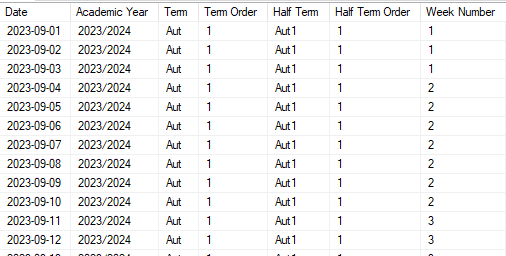
The aim of the solution was to provide a responsive visual that counted weeks within a period based on whether the selected academy (or group of academies )had any possible attendance within that period using data fed from registers. This does require a full attendance table.
The end result needed to look like:
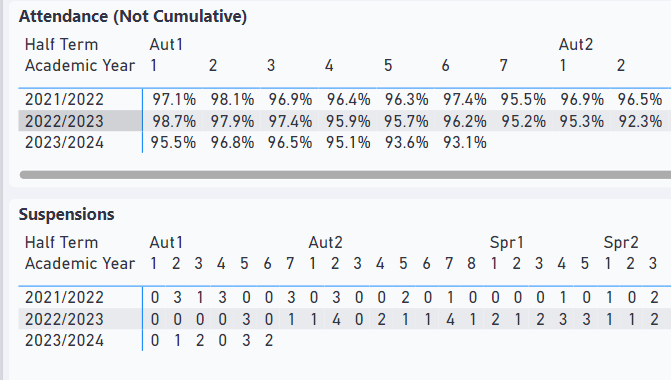
General Idea
When a filter is applied in a matrix for a specific academy and half term we want to first of all bring back a list of weeks within that filter context that have possible attendance before then assigning an index number:
| Half Term | Generic Date Table Week Number | Possible Attendance | Index |
| Aut1 | 10 | 0 | |
| Aut2 | 11 | 0 | |
| Aut2 | 12 | 7890 | 1 |
| Aut2 | 13 | 7890 | 2 |
| Aut2 | 14 | 7860 | 3 |
| Aut2 | 15 | 7860 | 4 |
| Aut2 | 16 | 7870 | 5 |
| Aut2 | 17 | 7890 | 6 |
| Spr1 | 18 | 0 |
A disconnected table containing a list of numbers can then be used in the visual. If for example in this disconnected table “3” was selected then week 14 from the date table would be used to do the calculation.
Disconnected Table
We start with a disconnected table with a list of numbers representing weeks from 1 to 52 (although will rarely use above 8!). I chose to do this in Power Query but a calculated table using DAX Generate would also work fine.
let
    Source = List.Numbers(1, 52),
    ToTable = Table.FromList(Source, Splitter.SplitByNothing(), null, null, ExtraValues.Error),
    RenameColumn = Table.RenameColumns(ToTable,{{"Column1", "Week Number"}}),
    ToInteger = Table.TransformColumnTypes(RenameColumn,{{"Week Number", Int64.Type}})
in
    ToInteger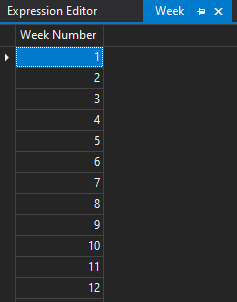
Calculation Group
A calculation group allows you to reuse a generic block of code. Currently you have to define these using a 3rd party tool (Tabular Editor 2 or 3) but it is coming soon to Power BI desktop. (Full definition will follow at the end)
In tabular editor create a calculation group called “Weekly Analysis Calc Group”
Add a Calculation Item called “Week by Week” with the following DAX which we’ll step through:
First read into a variable the currently visible Week Number from the disconnected table:
VAR SelectedWeekNumber = SELECTEDVALUE ( Week[Week Number] )Based on the active filter context we get a list of generic week numbers from the date table that are visible and have possible attendance. For example if Autumn 1 was selected you might see 1 to 8 however if an academy used inset days and didn’t have students in the first week you might see 2 to 8 ([# Attendance Possible] is a count of possible attendance marks from an attendance table):
VAR tblActiveWeekNumber =
    FILTER (
        DISTINCT ( 'Calendar'[Week Number] ),
        [# Attendance Possible] > 0
    )
We can then use a DAX window function called INDEX to put the visible generic week numbers in ascending order and bring back a specific row selected using our disconnected table. For example if we were looking at Autumn 2 the visible generic weeks from the date table that had student attendance might be 9, 10, 11, 12, 13. If in the visual the disconnected table had “3” selected the below would return a table that had Week Number 11 as a single row.
VAR tblSelectedWeek =
    INDEX (
        SelectedWeekNumber,
        tblActiveWeekNumber,
        ORDERBY ( 'Calendar'[Week Number], ASC )
Now we can apply that as a table filter to do our calculation. We’re writing this in a calculation group so we use the place holder “SELECTEDMEASURE()” and could then work with anything that gets passed in:
VAR SelectedWeekCalculation =
    CALCULATE (
        SELECTEDMEASURE(),
        tblSelectedWeek
    )
All that is left now is to return a value. We want to be able to return 0’s for things like suspensions but only when the academy was open to students which is done with the following SWITCH statement:
RETURN
    SWITCH(
        TRUE(),
        (  NOT ISEMPTY( tblSelectedWeek ) ) && ISBLANK( SelectedWeekCalculation ), 0,
        SelectedWeekCalculation
    )
Use in Power BI
Once you’ve created the calculation group you need to refresh the dataset (if doing it via XLMA then a recalculation is sufficient).
The calculation group shows up as a table and you drag the the single “column” into the filters for the visual you want to use it on before then selecting the Calculation Group Item:
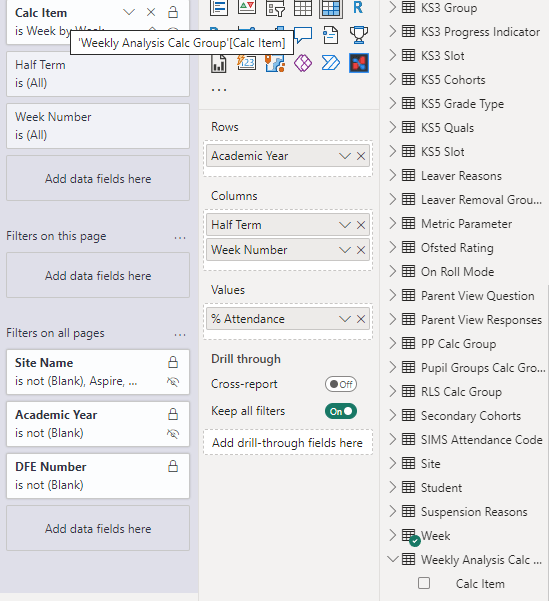
The code we’ve written will then apply to any measure dragged into the Values area.
Full Definition Script of Calculation Group
CALCULATIONGROUP 'Weekly Analysis Calc Group'[Calc Item]    Precedence = 1

    CALCULATIONITEM "Week by Week" =
        // This is a disconnected tabel with numbers listed from 1-52 although in general will only need to be used by half term.
        VAR SelectedWeekNumber = SELECTEDVALUE ( Week[Week Number] )

        // In visible filter context get list of week numbers.
        // [# Attendance Possible] to ensure school is open that week.
        VAR tblActiveWeekNumber =
            FILTER (
                DISTINCT ( 'Calendar'[Week Number] ),
                [# Attendance Possible] > 0
            )

        //Get the selected week.
        VAR tblSelectedWeek =
            INDEX (
                SelectedWeekNumber,
                tblActiveWeekNumber,
                ORDERBY ( 'Calendar'[Week Number], ASC )
            )

        //Use selected week to do the calculation.
        VAR SelectedWeekCalculation =
            CALCULATE (
                SELECTEDMEASURE(),
                tblSelectedWeek
            )

        RETURN
            // Replace blanks with zero when school was open but calculation returns no value.
            SWITCH(
                TRUE(),
                (  NOT ISEMPTY( tblSelectedWeek ) ) && ISBLANK( SelectedWeekCalculation ), 0,
                SelectedWeekCalculation
            )
        Description = "Must be used in conjunction with Week[Week Number]"
Ordinal = 0 Dobbs On Data